Tax identifiers
Many countries require a tax identifier on the customs declaration — an IOSS number for low-value goods into the EU, a VOEC number for Norway, an EORI or UKIMS number for the UK, a GST number for Australia or Canada, and so on. Carriers transmit these IDs to customs so your shipments clear without delays or surprise fees, and a few carriers also use tax IDs for specific domestic locales.
Parcelcraft attaches two kinds of tax IDs to a shipment:
- Sender tax IDs — your own registrations, saved once in the Parcelcraft settings and prefilled onto every shipment.
- Receiver tax IDs — your customer’s registrations, prefilled automatically from the tax IDs saved on their Stripe customer record.
Both kinds can be reviewed, edited, added, or removed on each shipment before you buy the label.
Save your sender tax IDs
- Open the Main settings tab of the Parcelcraft Settings page and scroll to the Tax IDs section.
- Click Add a tax id, then choose the tax ID type, enter the number, and select the issuing country (the European Union appears as its own entry for EU-wide registrations like IOSS).
- Click Save. Repeat for as many registrations as you hold — for example, an IOSS number for the EU and a UKIMS number for the UK.
Saved sender IDs are shared account-wide and appear on every new shipment. You can update or delete them from the same list at any time.
Receiver tax IDs come from Stripe
If the customer on an order has tax IDs saved on their Stripe customer record, Parcelcraft copies them onto the shipment as receiver tax IDs, translating each Stripe tax ID type to the closest carrier equivalent — an EU OSS VAT number becomes an IOSS identifier, a Canadian GST/HST number becomes a GST identifier, and so on. There’s nothing to configure; keeping your customers’ tax IDs current in Stripe is enough.
Review tax IDs on a shipment
On any shipment, expand Show more options in the shipment options section — the Tax IDs list sits below the option columns:
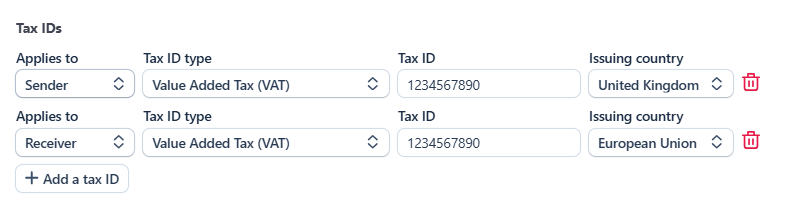
Each row shows who the ID applies to (Sender or Receiver), the tax ID type, the number itself, and the issuing country. Edit any field in place, remove a row with the trash icon, or click + Add a tax ID to add one just for this shipment — one-off additions don’t change your saved settings, and per-shipment edits don’t either.
A couple of rules to know:
- Incomplete rows are left off the label. A tax ID needs a type, a number, and an issuing country; if any of the three is missing, the row is skipped rather than blocking your purchase.
- The type list follows the carrier. The tax ID type dropdown only offers types the selected carrier accepts. A prefilled ID whose type the carrier doesn’t support stays visible so you can see what’s on the shipment, with a note that the carrier may ignore it.
Which tax ID types each carrier accepts
| Carrier | Tax ID types |
|---|---|
| USPS | VAT, IOSS |
| UPS | VAT, IOSS, VOEC, HMRC |
| FedEx | VAT, IOSS, GST, EORI, HMRC, UKIMS, EIN, SSN, State Tax ID |
| DHL Express | VAT, SDT, EORI, EIN, SSN, Federal Tax ID, State Tax ID, FTZ, CNP, DUN, and deferment accounts (DAN, TAN, DTF) |
Note: DHL Express accepts IOSS numbers under the GB VAT (foreign) registration (SDT) type, so pick SDT when sending an IOSS number on a DHL Express shipment.
For other carriers — and when quoting all carriers — the dropdown offers the full list of types, and the carrier uses the ones it understands.