Shipment options
Every shipment has an options section in the Create shipment view, just below the package fields. The options you’ll use most often — Return label, Saturday delivery, and a custom label text line — sit inline, and everything else is behind Show more options. Like the rest of the shipment view, options work the same in the full-page app and the drawer.
Options follow the carrier
The options list is carrier-aware: it only shows options the selected carrier supports, so you never have to guess whether a service applies. For example:
| Option | Available on |
|---|---|
| Saturday delivery | UPS, FedEx |
| Certified Mail, Registered Mail, return receipt | USPS |
| Hold at FedEx location | FedEx |
| Contains alcohol, contains dry ice, COD | UPS, FedEx |
| Hazardous materials | USPS, FedEx |
| Ship date, custom label text, handling instructions | All carriers |
Switching carriers doesn’t erase anything you’ve set. Options that don’t apply to the new carrier simply disappear from the list and stay out of the label purchase — switch back and they reappear with their values intact. Parcelcraft also filters options at quote time, so an option that doesn’t apply to the selected carrier can never taint your rates or cause a purchase to fail.
Comparing rates across carriers? When the carrier is set to Quote all carriers, only options that every carrier supports are applied, so the quoted prices won’t include carrier-specific surcharges like Saturday delivery. Treat a quote-all price as a ballpark comparison: pick the carrier you want and re-quote to get the exact price with all of your options included.
Show more options
Click Show more options to expand the full list for the selected carrier:
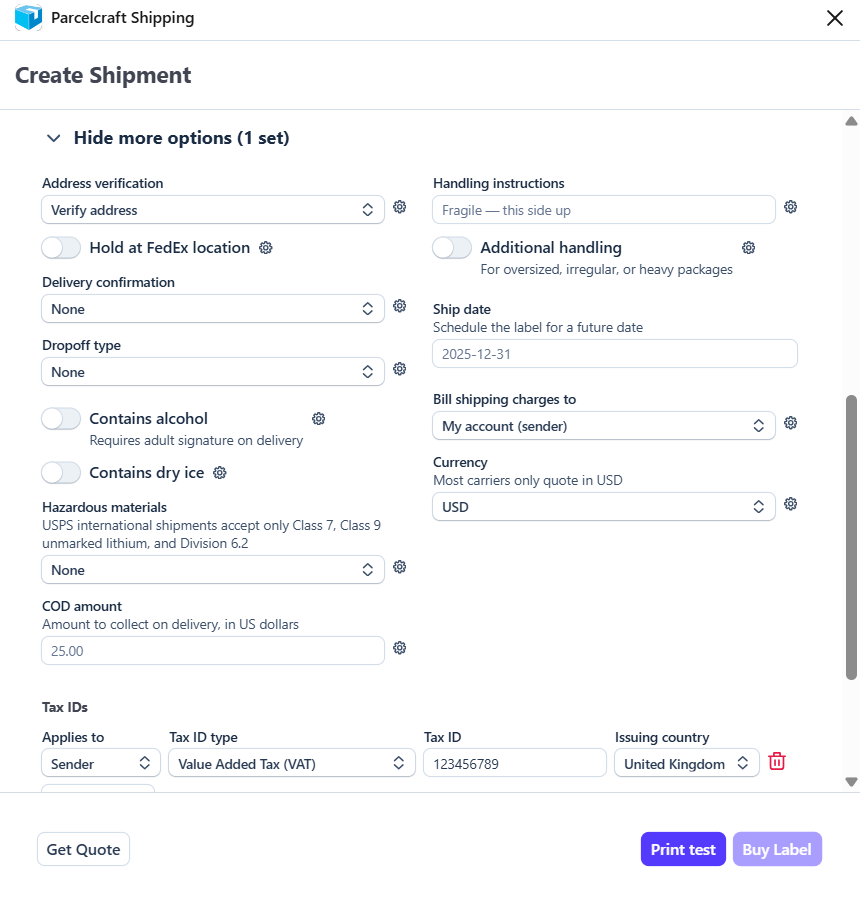
The options are laid out in two columns and ordered by kind:
- Delivery — delivery confirmation and signature requirements, address verification, and carrier-specific choices like USPS endorsements or FedEx dropoff type.
- Label & printing — ship date, invoice number, and up to three lines of custom label text.
- Billing — the billing currency and third-party billing.
- Customs & international — Incoterms and duties billing; these only appear when the shipment is international.
- Special services — Certified and Registered Mail, alcohol, dry ice, hazardous materials, COD, and other carrier services.
- Handling — handling instructions and the additional-handling surcharge flag.
Below the option columns you’ll also find the shipment’s Tax IDs — sender IDs prefilled from your settings and receiver IDs from the customer’s Stripe record. See Tax identifiers.
When the expander is closed, its label shows how many hidden options are set — for example Show more options (2 set) — so nothing you’ve configured is ever out of sight.
Some options come with dependent fields that appear only when they’re relevant: turn on Contains dry ice and a dry ice weight field appears beneath it.
Changing an option after you’ve quoted invalidates the quote, just like editing the address or package — re-quote to get a price that includes the change.
Bill shipping charges to another account
By default, postage is charged to your own carrier account. On UPS, FedEx, and DHL Express shipments you can bill another party instead: open Show more options and set Bill shipping charges to (under Billing) to Third-party account or Receiver’s account, then enter the account’s number and postal code — third-party billing also asks for the account’s two-letter country code.
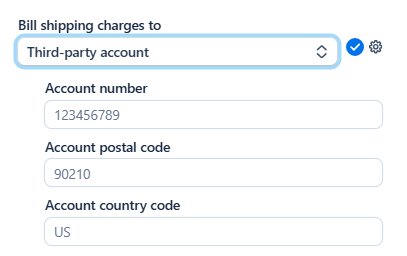
Third-party billing isn’t available for USPS, or for UPS accounts provisioned through EasyPost’s Digital Access Program (the built-in UPS option you get without connecting your own UPS account).
For international shipments, there’s a matching Bill duties & taxes to option under Customs & international, so you can route duties to a different account than the shipping charges.
Set defaults for future shipments
Every option has a gear menu beside it with a Set as default for future shipments switch. Turn it on and the option’s current value is saved as your default: every new shipment starts with that value already filled in.
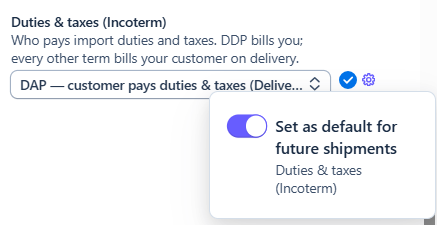
A few things to know about how defaults behave:
- The gear is highlighted when a default is saved, so you can see at a glance which options have one.
- Defaults are a starting point, not a lock. Changing the option on an individual shipment only affects that shipment — the saved default stays as it was. To change the default itself, set the new value and flip the gear switch off and on again.
- Carrier-specific defaults wait for their carrier. You can save a default for a UPS-only option; it applies whenever UPS is selected and stays out of the way otherwise.
- Per-order values can’t be defaults. Options like the ship date and invoice number are specific to each shipment, so they have no gear menu.
- Always creating return labels is just a default like any other: turn on Return label, then set it as a default from its gear menu.
Defaults for the carrier, service, package, and weight live separately on the Parcelcraft Settings page — see Carrier defaults.