The Orders list
The Create shipment tab of the full-page app shows a unified Orders list built from your Stripe payments and invoices. Each row is an order: the customer, when it was paid, its shipping status, payment status, total, the shipping rate the customer selected at checkout, the invoice number, and a description of the items ordered.
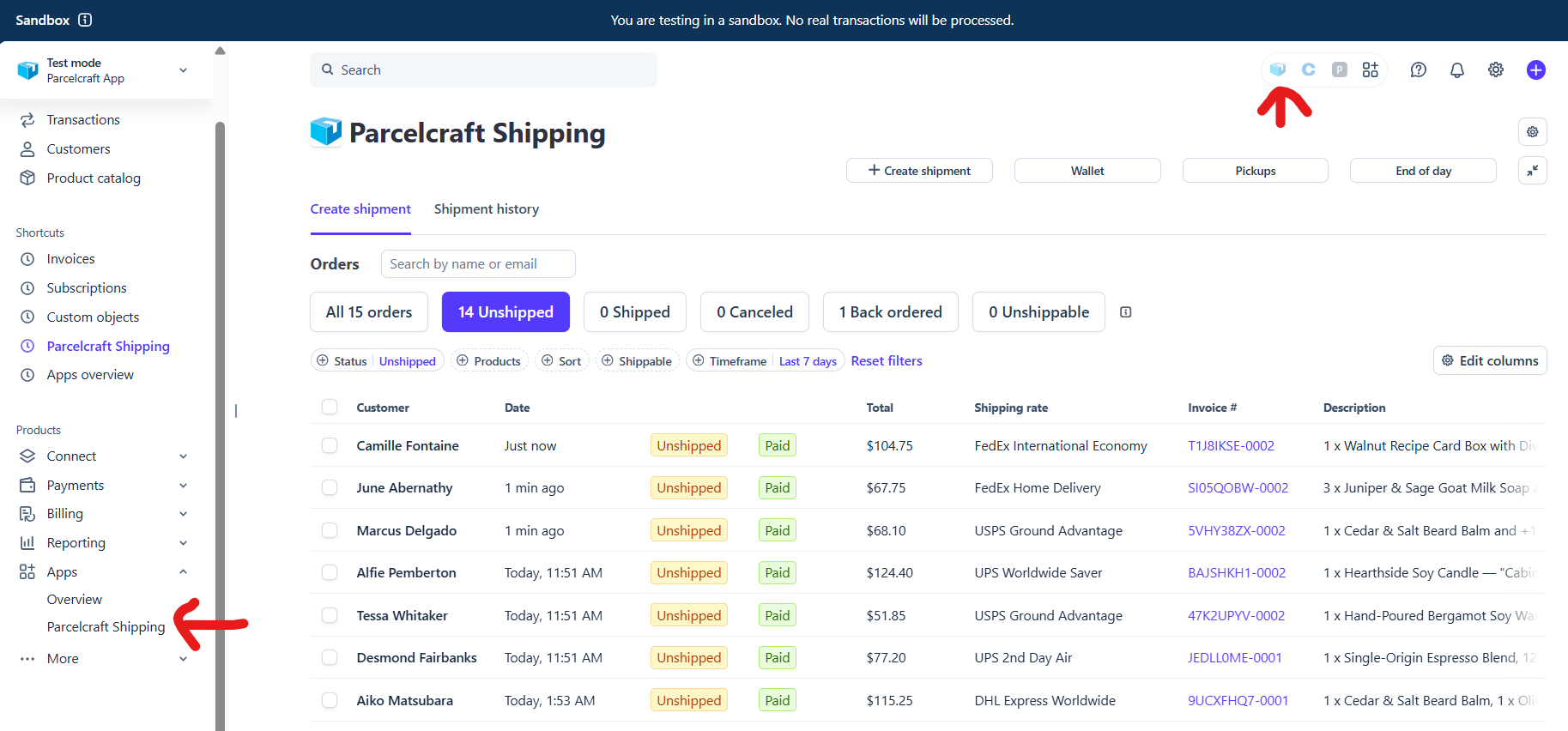
From this list you can:
- Click any row (or its Create shipment button) to open the shipment and buy a label.
- Select multiple orders to create shipments in bulk.
- Change the shipping status of one or many orders without creating a shipment.
- Search by customer name or email.
The Create shipment tab lists shipments from orders only. Track and manage all of your shipments — including test labels and blank shipments — in the Shipment history tab.
Shipping statuses and live counts
The buttons above the list show a live count of your orders in each shipping status. Click one to filter the list to that status.
| Status | Meaning |
|---|---|
| Unshipped | Paid orders that still need a shipping label |
| Shipped | Orders with a purchased label or a manually applied shipped status |
| Canceled | Orders you’ve marked as canceled |
| Back ordered | Orders waiting on stock |
| Unshippable | Orders whose items do not ship (for example, digital goods) |
Filtering orders
Filter chips under the status counts let you narrow the list:
-
Status — filter by one or more shipping statuses.
-
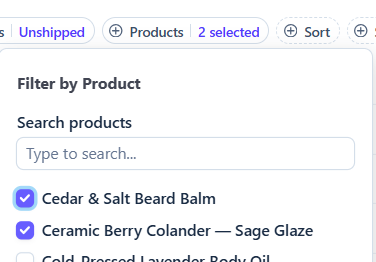
Products — show only orders containing specific products. Search for products by name and check the ones you want.
-
Sort — change the sort order of the list.
-
Shippable — hide orders whose items don’t ship.
-
Timeframe — show orders from the last 7, 30, or 90 days, the last 6 months, the last year, or a custom timeframe.
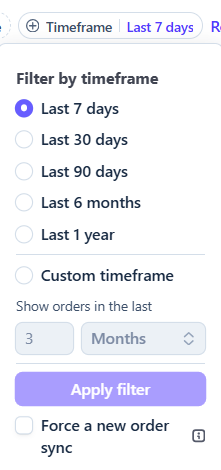
Click Reset filters to clear everything and start over to your main unshipped list.
Missing an order? Check the Force a new order sync option at the bottom of the Timeframe filter and apply it. Parcelcraft re-syncs your orders from Stripe for the selected timeframe.
Use Edit columns at the top right of the list to choose which columns are shown and drag them into the order you prefer.
Changing ship status from the list
You can change the shipping status of orders directly, without opening a shipment:
- Select one or more orders using the checkboxes.
- In the Bulk actions bar that appears, choose a status (Shipped, Unshipped, Canceled, Back ordered, or Unshippable) from the dropdown.
- Click Confirm.
Status changes are written to Parcelcraft’s orders database and mirrored to
the ship_status metadata of both the payment and its invoice, so the
Orders list, the drawer, and your Stripe objects always agree.
To cancel a single order, you can also use the row’s overflow menu: Manage → Mark shipment as canceled.
The Shipment history tab
The Shipment history tab lists every shipment on your account — including test labels, return shipments, and blank shipments that didn’t start from a payment or invoice. From here you can reprint labels, track packages, resend tracking emails, add insurance, request a driver pickup, and manage or void existing shipments.
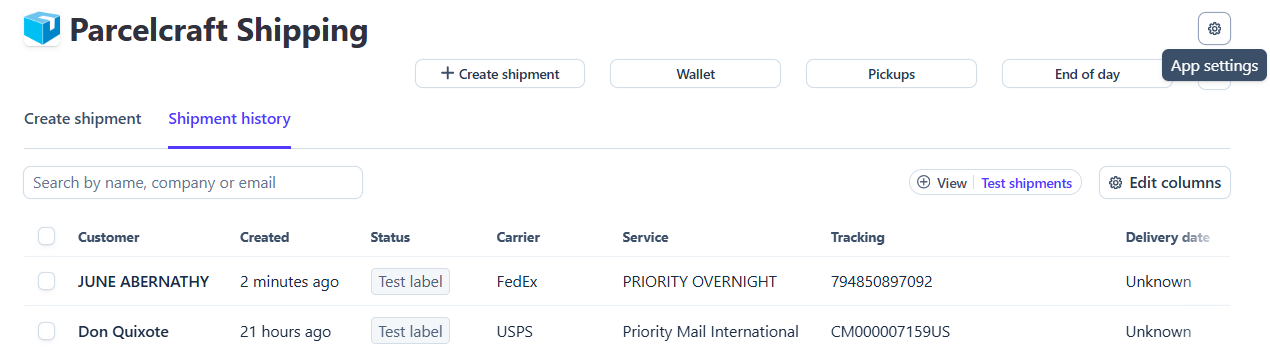
Search shipments by customer name, company, or email, and use the View filter to switch between live shipments and test shipments. As with the Orders list, Edit columns lets you choose and reorder the columns shown.
Relationship to the drawer
The drawer’s unshipped list is powered by the same orders backend as the full-page Orders list, so the two views always agree — a status change in one is immediately reflected in the other.